It seems like pretty much everyone knows at least one person who loves photography. The orkut team is no different– Navneet, one of the orkut engineers, is absolutely obsessed with taking pictures. Whenever we leave the office, he immediately whips out his camera and starts snapping photos of everything in sight. (I once caught him taking a close-up picture of my left foot– needless to say, I was not pleased.) All of these photos are of course uploaded to orkut, where he invites his orkut friends to compliment him on his artistic prowess. Like any budding artiste, however, our Navneet is constantly seeking exposure to a wider audience. To help Navneet share his "gift" with the world, and to help all of the rest of us stay connected with our friends who don't have orkut accounts, we're excited to announce a new photo sharing feature on orkut. Now you can share your orkut photos with all of your friends who have email addresses, whether they use orkut or not.Here's how it works:When you create an album, go to the "share with" drop down menu and choose "only selected friends". In addition to being able to enter the names of your friends on orkut who you want to share photos with, now you can include the email addresses of all of your friends who aren't on orkut as well.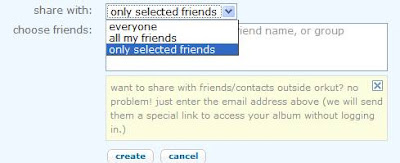
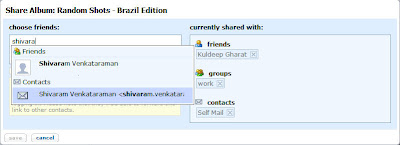 If you decide that you want to share or stop sharing an album that you've already uploaded, just click on the blue "Share Album" button to add/remove whichever friends you want from your "Currently Shared List."
 All of the non-orkut friends that you've included in the list will be emailed a special URL bringing them to your photo album. As this is a limited-access orkut page, your non-orkut friends will not be able to view your profile or any other part of orkut unless they join the site.Keep in mind that non-orkut friends who receive the link to your orkut photo albums can (and, if your photos are interesting enough, probably will) forward it on to other people who may also want to check your photos out. The only way to ensure absolute privacy over your photos is to restrict your album to specific orkut friends, as we showed you in the last blog post.So, whether you want to share your graduation glamour shots with all of your friends and relatives (even the ones who've never used orkut), or have photos from the party that you threw last weekend that you'd rather limit to just a few people, photo albums on orkut now give you the ability to choose.As Navneet can attest to, sharing photos is too much fun to limit just to orkut users. So get out there and start inviting all of your friends, family, and coworkers to join in the experience with you!
Source Orkut Blog.
Applications (apps) on orkut have quickly become one of the most popular additions that we've made to the site. Orkut currently offers over 600 apps, and that number continues to grow all the time.With so many apps to choose from, we recognize that trying to decide which ones to use can get pretty overwhelming. Personally I've found that one of the best ways to learn about new things and hot trends is by checking out what my friends are doing. With this in mind, the orkut team has added a new feature to the apps directory that allows you to see, and quickly add, the apps that your friends are using.When you visit the app directory, you'll not only be able to see the most popular apps and the newest additions, but also three different apps that your friends have added. If you haven't checked this feature out already, just click the "add apps" button to find out which games and tools your friends like. Hope you discover some fun ones!
Source Orkut Blog.
I've found it very interesting and may be you are interested... It's "Google Friend Connect", see how Google explains their new service ...
"Google Friend Connect lets you grow traffic by easily adding social features to your website. With just a few snippets of code, you get more people engaging more deeply with your site."
"Websites that are not social networks may still want to be social. But the barriers to offering social applications on the site have been considerable. Google Friend Connect changes this by enabling any site to offer dozens of social gadgets created by Google and OpenSocial developers to their visitors. This means more visitors spending more time on a more engaging website — with absolutely no programming required to make it happen."
You can read here for more information.
http://www.google.com/friendconnect/
Please note: this "Google Friend Connect" is a beta preview release.
Hope this useful.
Ever since we added "updates from my friends" to the orkut homepage, you've been requesting that we add more information to these updates so that you can stay informed on the latest developments from your friends. Over the past several months we've some added new types of updates and ways for you to control what kinds of updates you see. You can see everything from new photos and videos that your friends upload, to testimonials they receive, to changes they make on their profiles. Now you can tell your friends what you are doing or how you're feeling right this minute by changing your status message on your profile and letting it show up in your friends' homepages. If you prefer to keep your updates private, we give you the option of not showing your friends your updates. To prevent your updates from appearing on your friends' homepages, go to the Privacy Settings page and select 'hide updates' under the "my updates" section. If you don't want to see updates from your friends, select the "don't show updates from my friends" option under the "updates from my friends" section on your homepage. But if you ask me, with all the cool comments I get on my new photos and the scraps I receive in response to my other updates, I'm not going near these settings!
Source: Orkut Blog.
Photos have long been a popular feature of orkut, which is why we have engineers working full-time to make it easier for you to upload, share and browse photos on orkut. Recently, we increased our photo capacity so you can upload as many as you like, and we made it easier for you to organize your photos once you have them in your orkut albums. This week, we launched photo tagging so that you can label your orkut friends in your photos. Here's how it works: when you're browsing your own or your friends' photo albums, simply click the "add tag" link below the bottom right corner of the photo. Then click your mouse over the friend you would like to label. A box will appear, prompting you to type your friend's name. As you type, the field will auto-complete so you can easily find the orkut friend you'd like to tag. When you browse tagged photos, hover over the name of a person to see which person he or she is in the photo. If you click, you'll be taken to his or her profile. When one of your friends tags you in a photo, you'll receive an email. If you'd like to turn this notification off, you can go to notification settings. If a friend tags you in a photo and it's not you (or just a bad photo of you!), you can click on the trash can next to your name and delete the tag for good. The photo owner also has permission to delete any tags on his or her photos. If you'd rather not let your friends tag your photos, or be tagged in any photos, you can disable the feature completely in your privacy settings. Many people have already begun tagging their photos. Happy tagging!
Now you can more control over which friends' updates appear on your homepage. First, organize your friends in groups. You can do that by clicking on friends in the header and then creating groups and putting your friends in them. To select which groups you want updates from, click settings in the left navigation, and then select the appropriate groups from the "updates from my friends" section. Once you've done this, only the updates of your selected groups will be shown on your homepage. If you decide you want to see more updates, you can still access all your friends' updates by clicking "view more" on the bottom of your homepage.And if you'd prefer not have any of your updates appear on your friends' homepages, go to settings and click on privacy to set your own actions as private.

Now You Can Find Your Hotmail, Gmail, Yahoo & AOL Friends On Orkut.
Just choose the email provider (Gmail, Yahoo, Hotmail or AOL) from the drop down, and enter the user name and password for your email account.* Orkut will then show you the contacts from your address book and denote those who are already on orkut, so you can add them to your (ever growing) list of friends. For contacts who aren't on orkut yet, you can invite them in bulk.
If your email provider is not on the list, don't feel left out, we're working on adding more.
*The email provider list is not country specific, so find your friends no matter where you are, or where they are. For example, if you have a hotmail.com.in email address, simply select "hotmail" from the drop down. Remember, orkut values your privacy and security and will never store your password nor transmit it over non-secure channels.

Thanks to Orkut's New Feature - Manage Friends, members having over 1000 friends can accept friend requests. This is a possible bug since members having reached the limit cannot add more friends. You can always invite others to add you and then accept their request.

How others can add me as their friend?
It is evident that you cannot send an add request if you have reached the 1000 friends limit. You can always request others to add you though.
Here are the step by step instructions which they should follow:

- Enter email addresses to add as friend
- Enter the Captcha
- Submit
How Do i Accept Friend requests - I Have Reached The Limit?

- Just choose the category and click yes to add as your friend. :o)
This Article Was Published At
Orkut Plus
Do you have a lot of friends on orkut? Do you sometimes want to find all your school friends, send a message to all your co-workers, or check out your best friends' karma? 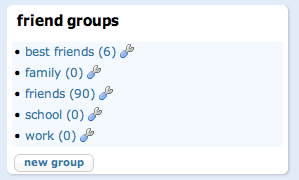 Friend groups have been on orkut for some time now, but we're now making them more accessible throughout the site to make it easier for you to create new groups or add new friends to them. Here's what's changed: when you add a new friend or accept a friend request, you can now select which group(s) you want to add them to. You can also modify these groups (rename them, remove them or add new ones) either when you add or accept a friend, or on the friend management page. And we've turned friendship levels into groups for you, so that you can send messages to all your best friends, or see all the friends on orkut that you haven't met offline yet. If you're not sure what groups to create, we've made a few default groups to get you started. This will make it easier to categorize your friends. You can always change the name of these groups if they don't suit your particular need. We're also planning on a bunch of new features so you can use your groups to make the orkut experience more tuned to your needs. Stay tuned!
A wise man once said "Privacy is the condition of being left alone, out of public view, and in control of information that is known about you." Here at orkut, we're keeping up with your requests for additional privacy controls. We recently added new features that allow orkuteers to limit viewership of photos, videos, testimonials and scrapbook to friends. Based on your feedback, we've decided to go even further to empower the owners of communities to choose whether to make their community content private or public. The additional privacy control we've added allows you to make your community an enclosed entity so that you can discuss whatever you want within its walls (of course, content must abide by orkut community standards and policies), resting assured that only members can view your discussions, forums, and events.
Have you ever thought of creating a community poll like "Who is the best teacher at your school?", but stopped yourself from doing it because the teachers might actually see it? Or perhaps you wanted to create a community to keep in touch with family, but didn't want to share your family events and posts with the whole orkut community? While communities are a great place to meet new people who share your interests, we understand that the current structure of communities sometimes makes it difficult to have intimate discussions with a select group of people. We hope that the introduction of private communities will fill this need.
So go ahead and create your communities, and use the privacy setting that fits your needs!
 You may have noticed that the orkut logo looked a little different when you signed in today -- and if the four candles on the cake didn't give it away already, it's our fourth birthday. That's right, 2/5ths of a decade ago, orkut launched. It has grown up pretty fast, with many more features, communities, friends and photos since it first opened as an invite-only community. Whether you've been with us for years or days, thank you for being a part of the orkut community!
Recently, we wrote about the new functionality that allows you to chose whether to let everyone or just your friends view your testimonials, videos and photos. And now, we're announcing that we've expanded privacy settings so you can now do the same with your scrapbook and feeds. Though some of us feel perfectly comfortable keeping our scraps open to the community, we know some of you are more private and would prefer to keep them among friends. How do we know? We've heard you in the help group and help center, and we've listened! Limiting who can view your scrapbook has been a long requested feature on orkut. To adjust your level of privacy, go to your settings page and click on "privacy". Thanks for the feedback, keep letting us know what you want to see from orkut!


 Labels:


 Posts
Posts

